The product page menu
The app adds one item to Shopify’s own product pages, so you can get from a product to its mirroring setup without going back to the app first.
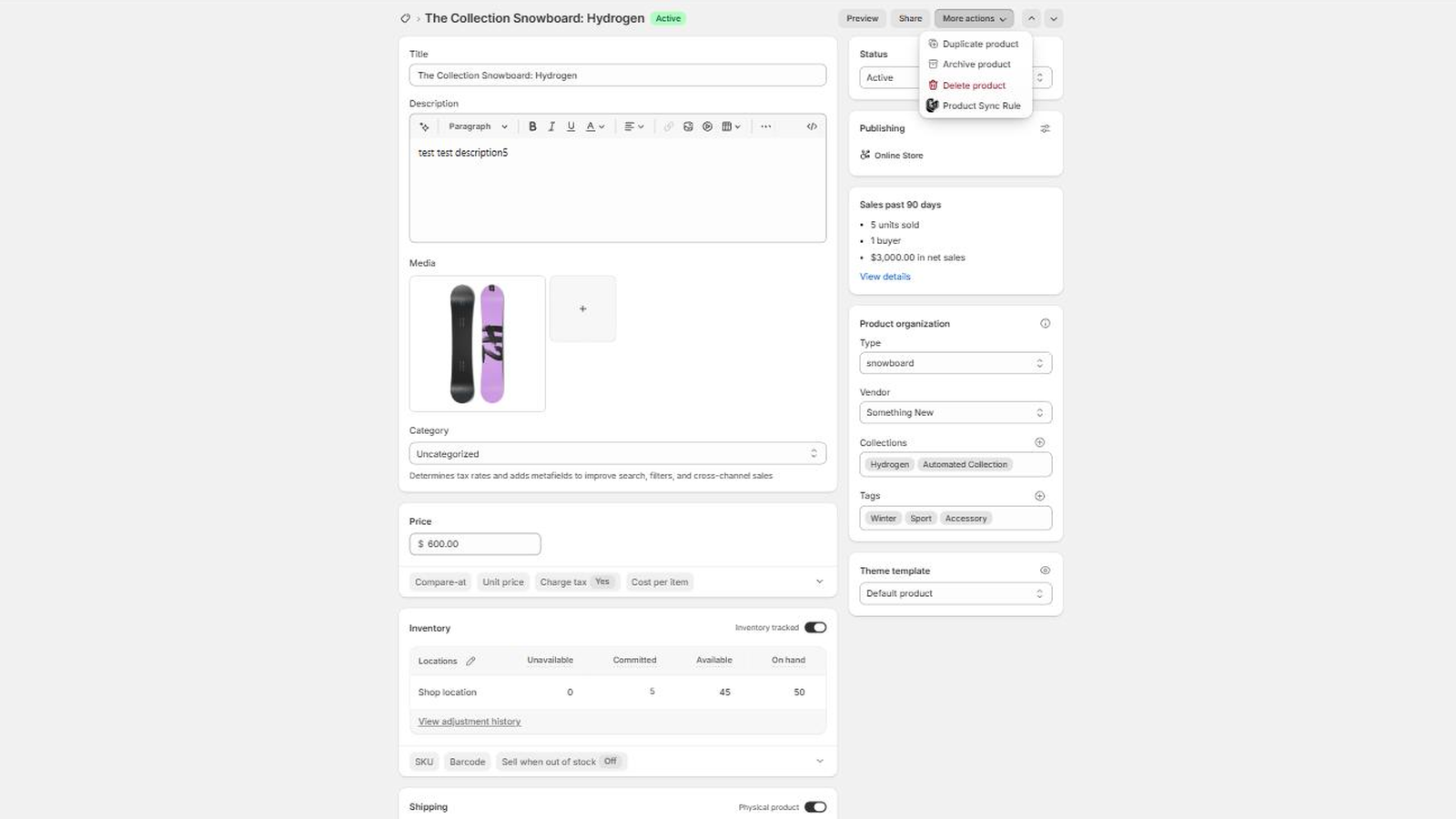
Where it is
Open any product in your admin and click More actions at the top right. Product Sync Rule is at the bottom of the menu. It appears on every product page once the app is installed, whether or not that product is part of a rule.
What it opens
The label is the same everywhere, because a menu item cannot change its own wording per product. What it opens depends on the product:
- A parent. Straight to that product’s rule page.
- A child. Straight to the rule that owns it, where you can see its parent, its siblings and the config in use.
- Anything else. A page saying the product is not part of a sync rule yet, offering Make Parent Sync to turn it into a parent, and View all rules to go to the dashboard.
Make Parent Sync creates the rule and takes you to it, ready for children to be attached. If the product turns out to be a child of an existing rule, you are sent to that rule instead. If your plan’s limit on rules has been reached, the page says so and links to the plan page rather than creating one.